How to change or add new wallpaper to TK920+ device using Local Web Page.
To change or Add the Wallpaper to your TK920+ device, please follow the steps outlined below.
1. Please power on the device and ensure that the SIM card is inserted properly. Then, using a LAN cable, connect the device to your PC by plugging one end into the PC port on the back of the device and the other end into the LAN port on your PC.
2. Once the LAN connection is established, please open a web browser on your PC and enter the IP address 192.168.224.1 in the address bar. If this IP address does not work, kindly check the IP address directly on the phone by navigating to the Phone Status section.
3. After entering the IP address and pressing Enter, you will be prompted to log in to the local UI. Please enter the following credentials:
Username: celestial
Password: hellotickiot
Then click on Sign in to access the interface.
4. Once you click the Sign In button, you will see several sections in the local UI, including Basic, Accounts, Network, DSS Keys, Phone, and Contacts. Please click on the Phone section to access the phone settings, as shown in the picture below.
5. Once you have accessed the Phone section, please click on the Preferences tab, as shown in the picture below.
6. In the Preferences
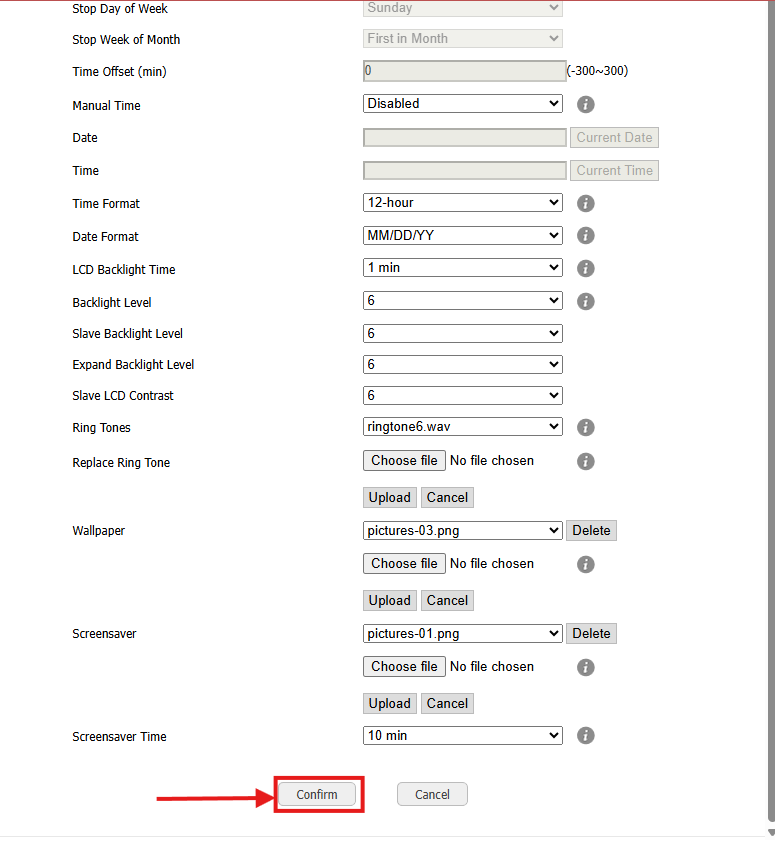
section, please scroll down to locate the Wallpaper option, as shown in
the image below.
From this
section, you can select one of the default wallpapers or upload a custom
wallpaper from your PC. Please note that the wallpaper must be uploaded in PNG
format; other formats are not supported. Once you add or change the Wallpaper please click on upload button.
Additionally,
you can change the Screen Saver wallpaper and configure the Screen
Saver timer as per your preference.
7.Once you
have completed the changes, please click the Confirm button. Kindly note
that the changes will not be reflected on the device until the Confirm
button is clicked.
Related Articles
How to change Provision URL in Local Web Page
To change the provisioning URL, please follow the steps outlined below. 1. Please power on the device and ensure that the SIM card is inserted properly. Then, using a LAN cable, connect the device to your PC by plugging one end into the PC port on ...How to make changes in Local-web-page.
1. Log in to your PhoneMDM account at phonemdm.com. 2. Click the below shown Icon to get into the settings of the required device. 3. After accessing the device configuration settings, select the Local-Web-Page option, which is the Tenth section on ...How to Add the Account in TK920+ device in PhoneMDM
1. Log in to your PhoneMDM account at phonemdm.com. 2. Click the below shown Icon to get into the settings of the required device. 3. After accessing the device configuration settings, select the Account option, which is the first section on the left ...How to Factory Reset the device remotely using phoneMDM
To remotely factory reset the TK920+ device using PhoneMDM, please follow the steps below. 1. Log in to your PhoneMDM account at phonemdm.com. 2. Click the below shown Icon to get into the settings of the required device. 3. After accessing the ...How to change settings of Power LED.
1. Log in to your PhoneMDM account at phonemdm.com. 2. Click the below shown Icon to get into the settings of the required device. 3. After accessing the device configuration settings, select the LED option, which is the Ninth section on the left ...