How to Factory reset the RCVx3 device Remotly using PhoneMDM
To remotely factory reset the RCVx3 device using PhoneMDM, please follow the steps below.
1. Log in to your PhoneMDM account at phonemdm.com.
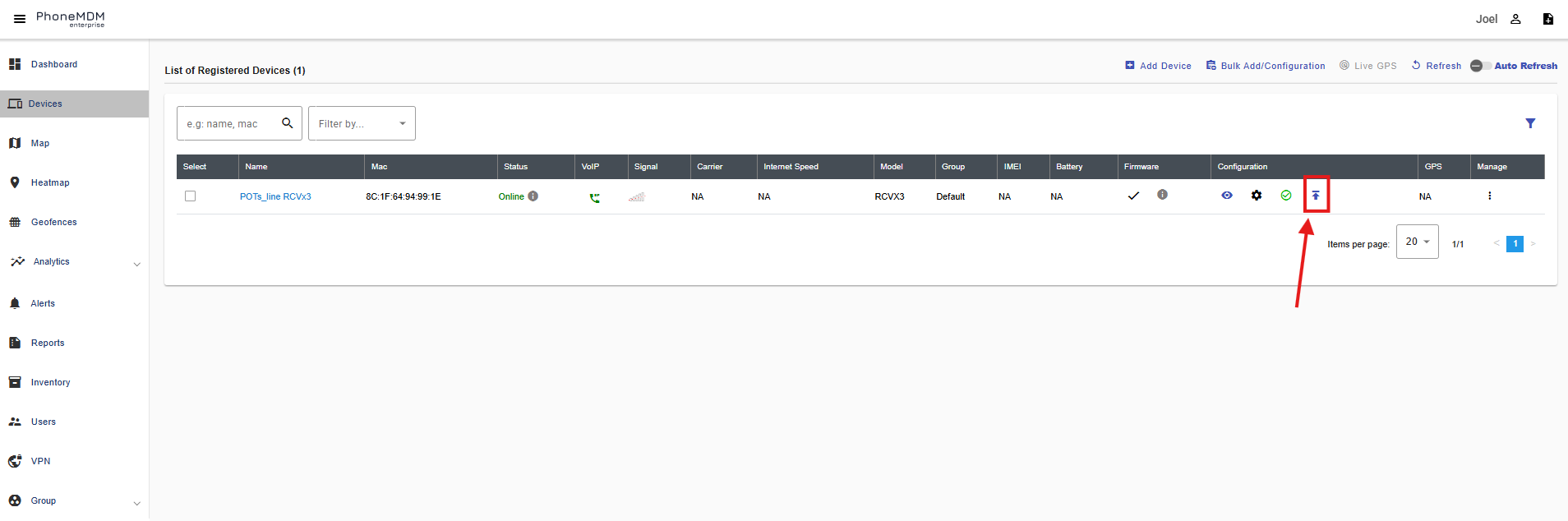
2. Click the below shown Icon to get into the settings of the required device.
3. After accessing the device configuration settings, select the Factory Reset option, which is on the left side.
4. After selecting Factory Reset, you will see a Factory Reset Enable/Disable toggle. Please enable this toggle and then click Save, as shown in the image below.
5. After clicking Save, select Resend Config. The status icon will change to yellow, indicating the configuration is being delivered to the device. When the icon turns green, the configuration has been applied and the device has been remotely factory reset.
6. Once the status icon turns green, click Settings again.
7. From Settings, select Factory Reset. Disable the Factory Reset toggle that was enabled for the remote reset, then click Save.
8. After clicking Save, select Resend Config again and wait until the status icon turns green. This completes the remote factory reset.
Related Articles
Factory reset the device from Local UI
A factory reset returns the device back to its default factory settings, i.e., it deletes all custom configurations. Below you will find a method of performing a factory reset on RCVx3. To configure Factory Reset using Local UI please follow the ...
How to configure Management settings using Local UI
To configure the Management in the RCVx3 device, please follow the steps outlined below. 1. Open a web browser and enter the URL of the RCVx3 device: 192.168.3.1. 2. If you are logging in for the first time, use the default credentials: Username: ...
How to Add RCVx3 to PhoneMDM
To add RCVx3 device to your MDM system, please follow these steps: Access the MDM Website: Open your web browser and enter the URL(https://phonemdm.com) for the PhoneMDM website. The login page will be displayed. Log In to PhoneMDM: Enter your valid ...
How to configure Provision using Local UI
To configure the Provision in the RCVx3 device, please follow the steps outlined below. 1. Open a web browser and enter the URL of the RCVx3 device: 192.168.3.1. 2. If you are logging in for the first time, use the default credentials: Username: ...
How to upgrade Firmware using Local UI
To configure the Firmware Upgrade in the RCVx3 device, please follow the steps outlined below. 1. Open a web browser and enter the URL of the RCVx3 device: 192.168.3.1. 2. If you are logging in for the first time, use the default credentials: ...